How to Monitor Apple TV Network Performance in Real-Time
tvOS is a notorious black box. When your 4K stream buffers, how do you know if it's your ISP, your local Wi-Fi, or the streaming app? Here is how to diagnose it.
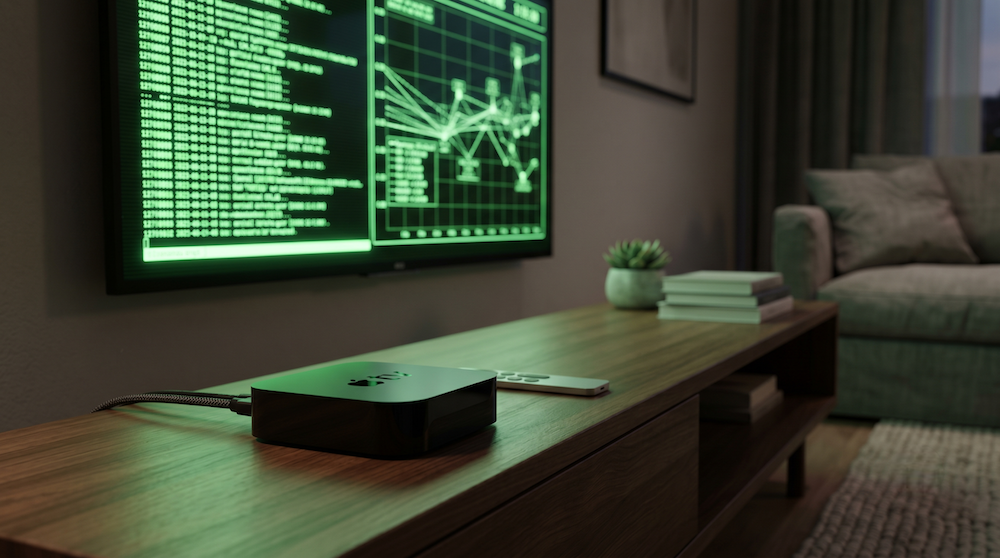
You sit down to watch a 4K HDR movie, and halfway through the most intense scene, the screen goes blurry, the loading spinner appears, and your immersion is ruined. You check your phone—the Wi-Fi seems fine. You run a speed test on your laptop, and you are getting 500 Mbps.
So, why is your Apple TV struggling?
The "Black Box" of tvOS
Apple designed tvOS to be invisible. There is no Activity Monitor, no Terminal, and no native way to check what is happening under the hood. While a seamless UI is great for casual viewing, it is an absolute nightmare when you need to troubleshoot a technical issue.
Identifying the Bottleneck
Speed Tests vs. Real-Time Throughput
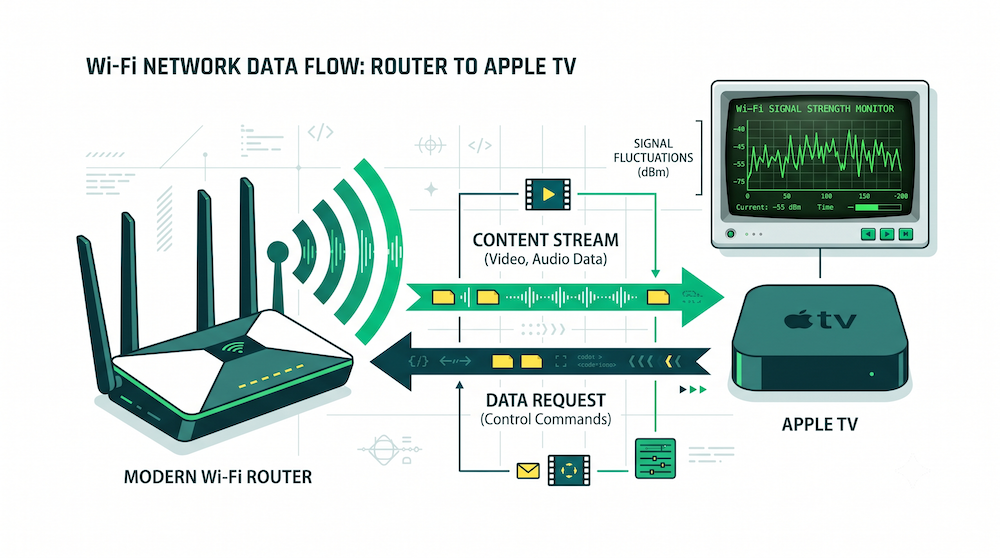
Running a standard speed test app on your Apple TV only tells you your potential maximum bandwidth at that specific second. It does not tell you:
- If your router is dropping packets intermittently.
- If background processes on the Apple TV are hoarding bandwidth.
- If the streaming server is actually sending data consistently.
To accurately diagnose network stuttering, you don't need a speed test. You need a real-time throughput monitor. You need to see exactly how many Megabytes per second (MB/s) are entering the hardware frame by frame.
The Solution: Retro System Monitor Terminal
We built Retro System Monitor Terminal as a universal app for iPadOS and tvOS specifically to bring deep system transparency back to Apple devices.
By opening the app on your Apple TV, you bypass the black box. The Network Module interfaces directly with the tvOS underlying UNIX layer to chart real-time RX (Receive) and TX (Transmit) data.

Turn Your TV Into a Diagnostic Terminal.
Retro System Monitor gives you real-time tracking of CPU usage, RAM, and Network throughput, all wrapped in a gorgeous, nostalgic CRT aesthetic designed for the big screen.